If your Dell laptop fan is running constantly after a Windows 11 update, you’re not alone. Many Dell users notice loud fan noise, overheating, or high CPU usage after installing a new Windows patch. The system feels slower, the fan spins nonstop, and the laptop becomes uncomfortable to use.
This guide explains why the problem happens and shows you a step-by-step fix to restore normal fan performance. Each method is simple, safe, and easy to follow—even if you’re not a tech expert. By the end, you’ll know exactly how to cool down your Dell laptop, optimize system settings, and prevent the issue from happening again.
Quick Summary / Here’s What You’ll Learn
-
What causes Dell laptop fans to run nonstop after a Windows 11 update.
-
Step-by-step methods to fix high fan usage and overheating.
-
How to optimize system settings for smoother performance.
-
Extra tips to reduce system load and maintain long-term health.
-
When to seek hardware or professional support.
What Causes Dell Laptop Fan Running Constantly After Windows 11 Update?
Common Causes
After a major update, fan issues usually come from:
-
Software glitches caused by incomplete Windows updates.
-
System settings changes that increase background tasks.
-
Outdated Dell drivers, especially thermal and BIOS.
-
Misconfigured power plans that push the CPU too hard.
-
App conflicts from startup apps or recent software installs.
-
Background indexing (Windows Search, Defender scans).
These create high CPU/RAM usage, forcing the fan to run at full speed.
How to Fix Dell Laptop Fan Running Constantly After Windows 11 Update (Step-by-Step)
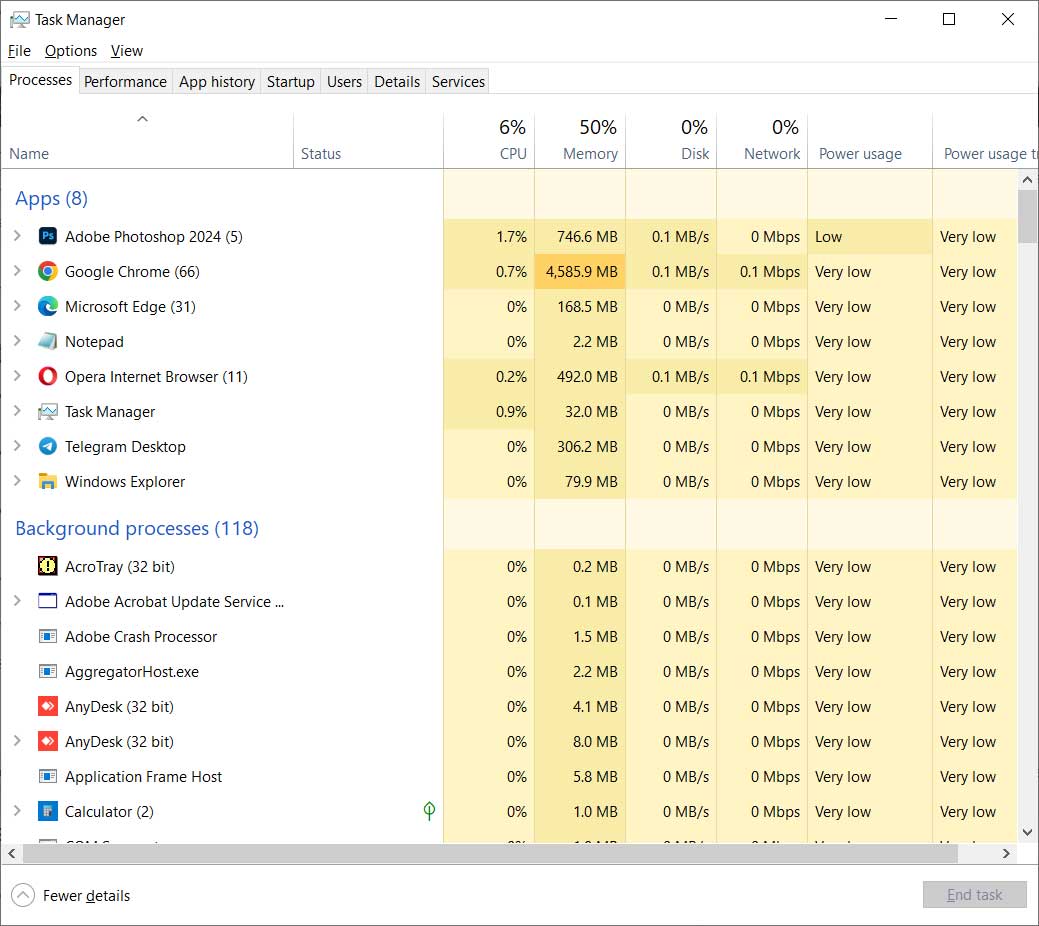
Step 1 — Check Task Manager for High Usage Apps
Windows updates often trigger background tasks. Open Task Manager and identify what’s consuming CPU or memory.
Steps:
-
Press Ctrl + Shift + Esc.
-
Go to the Processes tab.
-
Sort tasks by CPU or Memory.
-
End unnecessary apps (right-click → End Task).
If you notice “Windows Installer,” “Antimalware Service Executable,” or any app stuck at high usage, that often explains the nonstop fan noise.
Step 2 — Update Dell Drivers & BIOS
Outdated thermal drivers are the most common reason for fan issues after an update.
Do this:
-
Go to Dell SupportAssist or Dell Drivers page.
-
Update the following:
-
BIOS
-
Thermal Management Driver
-
Chipset Driver
-
Intel Dynamic Tuning
-
-
Restart your laptop.
Updated BIOS often fixes overheating by improving fan and temperature control.
Step 3 — Adjust Windows Power Plan Settings
Windows 11 updates sometimes switch your system to a high-performance mode.
Follow these steps:
-
Open Control Panel → Power Options.
-
Select Balanced (recommended).
-
Click Change plan settings.
-
Set Processor power management → Maximum processor state to 95%.
This small change reduces heat without affecting performance.
Step 4 — Clean Temporary Files & Reset Indexing
High disk activity causes the fan to spike.
Steps:
-
Search Disk Cleanup.
-
Select C: drive → Clean system files.
-
Delete temp files, cache, and Windows upgrade leftovers.
-
Go to Settings → Privacy & Security → Searching Windows.
-
Set indexing to Classic.
This reduces background services that elevate CPU heat.
Step 5 — Disable Startup Apps
Too many startup apps load immediately after Windows boots.
Do this:
-
Press Ctrl + Shift + Esc → Startup.
-
Disable:
-
Discord
-
Adobe Updater
-
Chrome auto-launch
-
Microsoft Teams
-
Game overlays
-
Fewer startup apps = lower CPU usage = quieter fan.
Additional Methods
Try these if fan noise still continues:
-
Run System File Checker:
sfc /scannow -
Reset Windows power mode:
Settings → System → Power → Recommended. -
Update Intel/AMD GPU driver
-
Use Dell Power Manager to adjust fan profiles
-
Check for malware using Windows Security
Extra Tips to Improve Performance / Prevent the Issue
Use these simple habits to keep your Dell laptop cool:
-
Disable unused background apps.
-
Update Windows and drivers regularly.
-
Clean internal dust every 6–12 months.
-
Adjust performance settings to Balanced mode.
-
Keep 20–30% free storage space.
-
Restart your system at least once every two days.
These habits extend laptop life and reduce fan strain.
When to Seek Professional Help
You should contact a technician if:
-
The laptop overheats even when idle.
-
You hear clicking, grinding, or unusual fan noises.
-
The system crashes or shows thermal throttling messages.
-
BIOS updates fail or show errors.
-
Malware keeps returning after cleaning.
These symptoms may indicate failing hardware or deep system-level issues.
FAQ Section
1. Why is my Dell laptop fan so loud after a Windows 11 update?
A Windows update often triggers background processes like indexing, updating drivers, or system optimization. These tasks use more CPU, causing the fan to spin faster. Outdated Dell drivers or thermal profiles also contribute to this issue.
2. How do I stop my Dell fan from running constantly?
Start by checking Task Manager, updating drivers, adjusting power settings, and disabling startup apps. If the issue continues, update BIOS and run Dell SupportAssist diagnostics. These steps resolve most fan-related issues.
3. Does updating BIOS fix overheating and loud fan problems?
Yes. BIOS updates often improve cooling profiles, fan curves, and temperature detection. An outdated BIOS can cause aggressive fan behavior, especially after a major Windows update.
4. Can dust cause constant fan spinning?
Absolutely. Dust blocks airflow and forces the fan to work harder. Cleaning vents and internal fans helps reduce noise and heat buildup.
5. Is it safe to limit maximum processor state to 95%?
Yes. This setting slightly reduces peak CPU temperature without impacting daily performance. It’s a common method used to reduce heat on laptops.
A Dell laptop fan running constantly after a Windows 11 update is usually caused by driver issues, background processes, or power settings. By following the steps in this guide—checking Task Manager, updating drivers, adjusting power plans, and cleaning system files—you can restore normal fan behavior and improve overall performance.
For more troubleshooting guides, performance tips, and Windows fixes, browse the latest posts on LoadingTips.com.
Internal Link Suggestions
External Authority Link
Microsoft official driver/Windows update troubleshooting:
https://support.microsoft.com